





|






|
|
| Service News | ||
|
|
Various Models
Version: 500, 500L, MiTo, Giulietta, Ypsilon, Doblò and Ducato (290) with VP2 and VP2-Nav systems |
|
|||
| 5580 2 351 R0 |
VP2 – VP2-NAV (5”) INFOTAINMENT SYSTEMS
Various faults - Service Solution |
|||

|
Cancels and supersedes the following Service News issues for availability of new software version. • 55.02.15 on 17/09/2015 of Fiat 500L • 55.008.16 on 29/02/2016 of Ducato 290 • 55.003.16 on 04/02/2016 of Alfa MiTo • 55.02.15 on 10/02/2015 of Alfa Giulietta • 55.005.17 on 28/04/2017 – Miscellaneous models • 55.005.17 on 30/05/2017 – Miscellaneous models for new fault code (R0 and not RA) • 55.005.17 on 31/07/2017 – Miscellaneous models for new software specific to the Ducato 290 • 55.005.17 of 31/07/2017 – Various models for availability of new software • 55.034.18 of 17/07/2018 – Various models for availability of new software |
This SN can be applied only to models and VP2 and VP2-Nav systems shown in the table below:
|
Model |
System type (Optional) |
|
500 Abarth (150) |
7HZ 7KJ 7J0 7J2 7V1 7VX 81Y |
|
Fiat 500 (150) |
7HZ 7KJ 7J0 7J1 7J2 7V1 7VX 81Y |
|
Fiat 500L (330 – 530) |
6Q2 6Q3 6Q4 6Q8 6Q9 6RX 6RY 7V1 |
|
Alfa MiTo (145) |
6Q2 6Q3 6Q8 6Q9 7V1 |
|
Alfa Giulietta (191) |
6Q2 6Q3 |
|
Lancia Ypsilon (402) |
6Q2 6Q3 6Q9 |
|
Doblò (152 – 263) |
6Q2 6Q3 6Q9 6RZ 7V1 |
|
Ducato (290 – 295) (*) |
6Q2 6Q3 6Q8 6Q9 (*) |
(*) Not applicable on Australian market
Optional Legend
- Opt.6Q2 - VP2 - Radio 5" with bluetooth without DAB
- Opt.6Q3 - VP2 - Radio 5" with bluetooth with DAB
- Opt.6Q4 - VP2 - Radio 5" with bluetooth without DAB (Non-EEC EMEA)
- Opt.6Q8 - VP2-Nav - Radio with Navigator 5" with bluetooth without DAB
- Opt.6Q9 - VP2-Nav - Radio with Navigator 5" with bluetooth with DAB
- Opt.6RX - VP2 - Radio 5" with bluetooth with CD MP3 (NAFTA)
- Opt.6RY - VP2 - Radio 5" with bluetooth with CD MP3 (NAFTA/SDARS)
- Opt.6RZ - VP2-Nav - Radio Navigator 5" with CD MP3
- Opt.7HZ - VP2 - Radio 5" Dual Tuner with bluetooth without DAB without CD (only EMEA markets)
- Opt.7J0 - VP2 - Radio 5" Dual Tuner with bluetooth, with DAB without CD (only EMEA markets)
- Opt.7J1 - VP2-Nav - Radio with Navigator 5" Dual Tuner with bluetooth - without DAB without CD (only EMEA markets)
- Opt.7J2 - VP2-Nav - Radio with Navigator 5" Dual Tuner with bluetooth with DAB - without CD (only EMEA markets)
- Opt.7KJ - VP2 - Radio 5" with bluetooth without DAB (only APAC markets)
- Opt.7V1 - VP2 - Radio with Navigator 5" with CD MP3 without DAB (only Turkey market)
- Opt.7VX - VP2-Nav - Radio with Navigator 5" Dual Tuner (Non-CEE EMEA)
- Opt.81Y - VP2-Nav - Radio with Navigator 5" Dual Tuner with bluetooth - with DAB without CD (Australia)
CLAIMED FAULT
If the software is updated to the new version 13.00.65.02, the following claimed faults will be solved:
Defects common to all models in question
- Volume not working, no audio (*).
- DAB function cannot be selected (*).
- DAB not working.
- Navigation system slow.
- Screen with no directions or blank.
- Spontaneous stop/restart of the system (reboot).
- Radio stuck on disclaimer after key on (*).
- With iPhone IOS 10 connected via bluetooth, not possible to end received calls (both on display and steering controls).
- Occasional disconnection of the iPhone from Uconnect, following connection via USB.
- Voice recognition not working with specific music files in WMA format (containing the Turkish “ I ” character) (*).
|
|
(*) Faults solved with new 13.00.65.02 release |
Defects common to 500L, MiTo, Giulietta and Ducato (290) models
- Audio noise (spike) at the end of a phone call.
- Sound volume locked; it cannot be changed using the radio knob or the controls on the steering wheel.
- Occasional freezing of the system while playing CD.
Defects common to 500L, MiTo and Ducato (290) models
- Misalignment of speedometer speed value with VP2: speed value alignment (warning -speed limiter) between radio and speedometer indication.
- Impossible to change the sound volume of the call over the limit of 25.
- On the VP2-Nav system, impossible to use the navigation/request to load new map function.
Defects specific to some models
- On VP2-Nav system audio malfunctions while navigating (only 500L and Ducato).
- CD/USB do not function (only 500L and Ducato).
- Spontaneous shut-off (only 500L and Ducato).
- Voice recognition does not function (only 500L and Ducato).
- Audio distortion on rear speakers (for 500L Living version only).
- The date cannot be set/modified (vehicles for Central America only) (only 500L).
- No information relating to DNA system can be viewed (only MiTo).
- BOSE audio system does not function on VP2 systems with release of software 06.00.48 (only MiTo).
- Lack of radio frequency reception when manually searching (only for markets in: Argentina, Azerbaijan, Chile, Colombia, Costa Rica, Guatemala, Peru, Dominican Republic) (only Giulietta).
- If there is an enabled audio source, with volume lower than 15, and the lane is surpassed with the Driving Advisor system on (lane drift system), the source audio is not disabled but superimposes the warning signal (only Ducato).
- The vehicle position on the map is incorrect during navigation (Ducato only).
The following improvements/implementations will be added:
- ECOdrive function activation/deactivation using voice commands (500L, MiTo and Ducato).
- Information about ECOdrive function for LPG fuel (500L and MiTo).
- Improved strategy for alternative frequencies (AF strategy) (500L, MiTo and Ducato).
- The radio can be turned off after call transfer on own cell (500L, MiTo, Giulietta and Ducato).
- SMS reader function can be activated/deactivated (500L, MiTo and Ducato).
- Navigator maps can be updated using the Tom Tom site (500L, MiTo and Ducato).
- Additional elements on map (coordinates, distance to destination and to Home, etc.) can be viewed (500L, MiTo and Ducato).
- Road segment on map and viewing building numbers and/or street name can be selected (500L, MiTo and Ducato).
- A Point of Interest (Pdl) on map and viewing its name with relative phone number can be selected (500L, MiTo and Ducato).
- An element on the map to set a destination, define a favourite destination, search for a Pdl in the area, etc., can be selected (500L, MiTo and Ducato).
- The SMS reader function is improved (forward and reply from a list, SMS on/off, send predefined messages functions) (500L, MiTo and Ducato).
- Possibility of changing the sound volume of the call over the limit of 25 (MiTo and Ducato).
- Improvements to avoid signalling map loss (MiTo and Ducato).
- For vehicles equipped with iTPMS (indirect Tyre Pressure Monitoring System), choosing between two measurement units (PSI and BAR) is possible (500L and Ducato).
- Improved audio curve equalising (only 500L).
- Lowering radio volume variations in case of poor reception (only 500L).
- Album Art viewing for devices connected via USB (only 500L).
- The scan up/down of the frequencies using the controls on the steering wheel was improved (only 500L).
- List order improved (only 500L).
- The graph of the ECOdrive App was improved (only 500L).
|
|
We inform you that the http://www.driveuconnect.eu web page contains the updated list of mobiles compatible with the VP2 and VP2-Nav systems. |
TECHNICAL CAUSE
Software Calibrations.
OPERATIONS IN PRODUCTION
Adoption of systems with updated software.
IMPLEMENTATION OF MODIFICATION
|
Version |
Plant |
Line |
Chassis no. |
Organisation No. |
|
500 Abarth - Fiat 500 (150) |
Tychy |
- |
0J958603 |
08099121 |
|
Alfa Giulietta (191) |
Cassino |
- |
07505610 |
07431275 |
|
Alfa MiTo (145) |
Mirafiori |
- |
0X078132 |
00282405 |
|
Ducato (290 - 295) |
Sevel |
- |
02F96696 |
02344975 |
|
Lancia Ypsilon (402) |
Tychy |
- |
05405220 |
05362143 |
OPERATIONS AT THE DEALERSHIPS
DEALERSHIP BEHAVIOUR STANDARDS TOWARDS THE CUSTOMER
- Once the Customer's claimed fault is confirmed, reassure the Customer that the fault will be solved by updating the software.
- After completing the operation, illustrate what has been done and ensure that the Customer is satisfied.

|
• The Service News consists in upgrading the software of the infotainment module and this could cause loss of settings and pairing with telephones. • Inform the customer in advance that this may occur and ask if there are any particular settings that they want to reinstate, and if there are, take note of them; • Offer availability to support them in reinstating the noted settings and pairing their telephone |
Service Solution
Once the suspected fault is confirmed, check the software release and update it if required, according to the Operating Cycle below.
|
|
Depending on the initial SW version, after reprogramming, the screen colours could vary. |
OPERATION CYCLE
The following procedures should be performed to update the software of the VP2 and VP2-Nav infotainment systems software.
- Software version check
- Software acquisition for update
- Software update
- Final check
- Restore apps
|
|
Before starting to control and reprogramme the software, check if the car chassis number is associated to other Campaigns to be implemented. |
Software version check
- Connect the diagnostic tool updated to the latest software release.
- Perform a vehicle Scan Report and save a copy for any further investigation.
- Make a note of the number of the software version installed on the device.
|
|
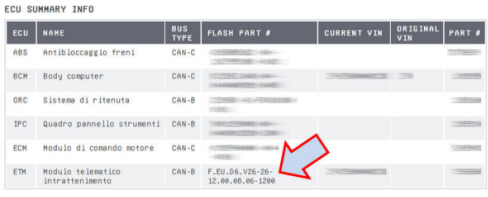
The Scan Report states the software version in the “Flash Part”. In the example shown in Fig. 1, the software version is 12.00.08.06. |
- If the version is earlier than 13.00.65.02, continue with acquiring and updating the software as described in the following paragraphs.
|
|
If the software version is 13.00.65.02 or later, this Service News cannot be implemented; continue troubleshooting to solve the claimed fault. |
Fig. 1

Software acquisition for update
Before updating the application, check the availability of the following tools:
- Personal Computer with Windows© 2000 operating system or later versions.
- USB flash drive with manufacturer's certification of compatibility with the Windows© 2000 operating system or later versions, minimum capacity of 2 GB - formatted as FAT32.
|
|
If you are using a USB stick that has already been used for previous updates, it should be reformatted in FAT32 mode to ensure the proper data flow. |
1. Download the VP2_CO_13.00.65.02.zip file to a PC from the following website:
http://download.witexedi.aftersales.fiat.com/VP/VP2_CO_13.00.65.02.zip
|
|
the dimension of the file to download is about 370 MB. |
2.Unzip the .zip file and save the content in an empty USB stick (min. 2 GB), previously formatted in FAT32 mode. At the end of the operation only the files contained in the downloaded file must be on the USB device.
3.Apply an adhesive label to the flash drive, adding the following information:
• Model concerned: Write the name of the model (500, MiTo, Ypsilon, etc.)
• Type of radio: Write the system name (VP2 5” or VP2-Nav 5”)
• SW version: 13.00.65.02
|
|
These software versions replace all previous versions, which must be deleted. |
|
|
Check the availability of the updated software versions before starting reprogramming operations. |
Software update
Working on the vehicle, proceed as follows:
|
|
Connect a battery charger or an additional battery to prevent battery discharge. For systems with Keyless Entry and/or Keyless Go (where provided) start and keep the engine running - (in safety) - for the entire updating period. |
- Move the key to the MAR position (the engine does not have to be on if the car is not equipped with Keyless Entry and/or Keyless Go systems).
- With the key in MAR (or the engine on for cars not equipped with Keyless Entry and/or Keyless Go systems) the radio does not go on automatically, turn it on by pressing the ON/OFF button.
- Wait until the radio has switched on (about 20 seconds).
- Insert the USB drive containing the updating software into the relative USB connector.
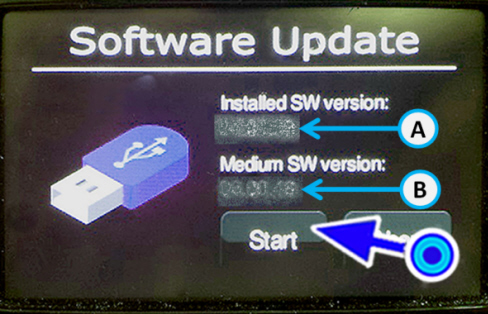
- After a few seconds, the audio is deactivated and the picture in Fig. 4 appears, indicating the software version in the system (A) and the new version in the drive (B).
- If the software in the flash drive is later than the one in the system, select Start on the display (Fig. 2) to start updating.
|
|
If the update does not start automatically within a few seconds, remove the USB flash drive - format it again in FAT32 mode -, copy the unzipped files again and insert the device in its port. Otherwise, repeat the operation with another USB flash drive. |
Fig. 2
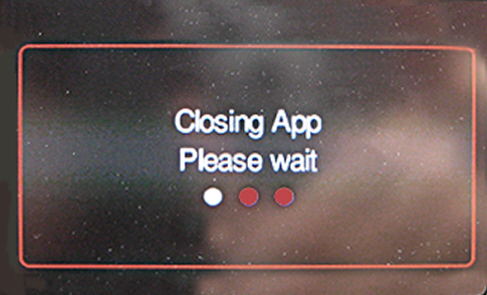
- If apps have been installed (e.g. Eco:Drive, My:Car, Uconnect for Twitter, TuneIN, Reuters, Deezer, etc.) - (- for markets, where provided) after selecting “Start” (Fig. 2) on the display, the App closing will be shown (Fig. 3). In this case, when software updating is finished, carry out the Applications Restore procedure shown next.
Fig. 3
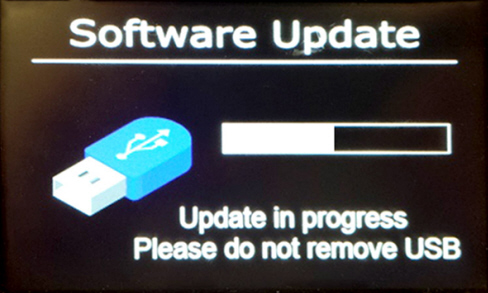
- During the updating procedure, a bar is displayed; it will be completed according to the progress of the procedure (Fig. 4).
Fig. 4
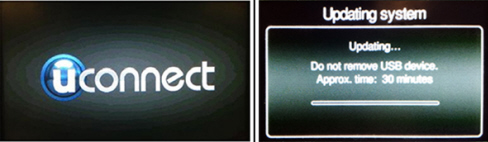
- There will be some switching-off processes of the radio and a screen like the following ones (Fig. 5) might be displayed, due to internal restarting procedures of the system.
Fig. 5
|
|
DO NOT switch off and DO NOT interrupt the power supply. During the software update procedure DO NOT remove the USB stick and DO NOT turn the key to Park or OFF; the key should stay in the position MAR. |
- Once started, the entire procedure does not require any intervention by the operator.
- Wait until the software is updated; the radio screen will display the following (Fig. 6).
Fig. 6
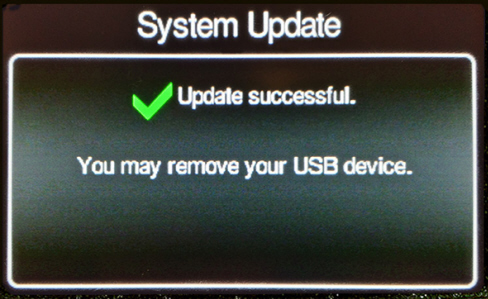
- Now, only after the screen of Fig. 6 is displayed, remove the USB stick.
|
|
DO NOT switch off and DO NOT interrupt the power supply. |
- After removing the USB stick, the radio will perform a series of automatic restarts by itself. After approx. 3 - 4 minutes the radio will be available again, with the updated software.
- During this step it is ABSOLUTELY necessary to leave the vehicle with the key turned to MAR. Any cut-off in the power supply may damage the radio beyond repair.
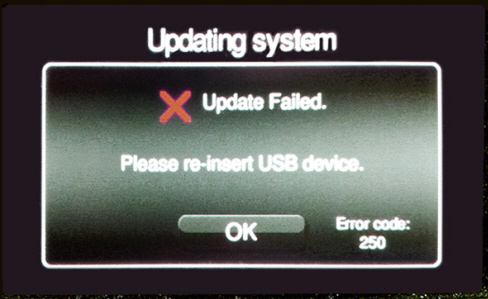
- If, at the end of the software update procedure, the radio display shows the image of Fig. 7 (rather than that of Fig. 6), remove the USB stick, turn the key to OFF for 3 minutes, turn the key again to MAR, refit the USB stick and repeat the software update procedure.
Fig. 7
|
|
The displayed error code may be different from that shown in Fig. 7. |
If the result is still negative, delete the content of the USB stick, unzip the file downloaded from the web site and copy the files in the USB stick; now, repeat the software updating procedure starting from the beginning of the Operating Cycle.
Final check
- Once the update procedure has been completed with a positive result, connect the diagnosis equipment.
- Perform a vehicle Scan Report and save a copy for any further investigation.
- Check that the SW Version number corresponds to the updated version.
Restore apps
- If, after the start of updating, the closing Apps screen (Fig. 3) appears on the display, after the software updating, carry out the following Restore Apps procedure.
|
|
The restore procedure does not have to be carried out if applications have never been installed. |
Restore apps
|
|
Procedure applicable only on vehicles equipped with UCONNECT LIVE services. |
- Turn the key to MAR (it is not necessary to have the engine running).
- Wait until the radio has switched on (about 20 seconds).
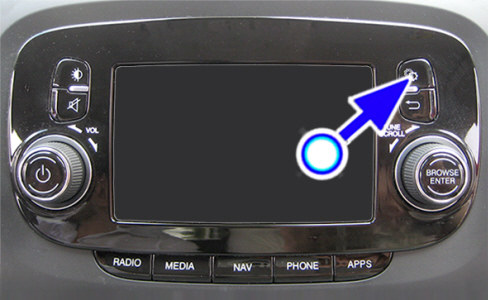
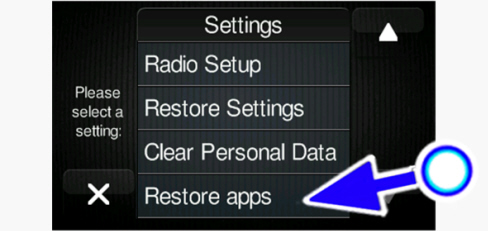
- Press the settings button (Fig. 8).
Fig. 8
- Scroll the menu items down to the last one, i.e. Restore Apps, and select it (Fig. 9).
Fig. 9
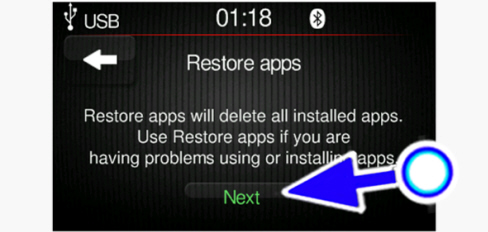
- A screen describing the operation being carried out will appear; select Next (Fig. 10).
Fig. 10
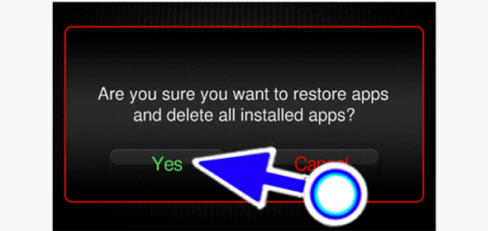
- A confirmation screen will appear; select Yes (Fig. 11) to start the restore procedure.
Fig. 11
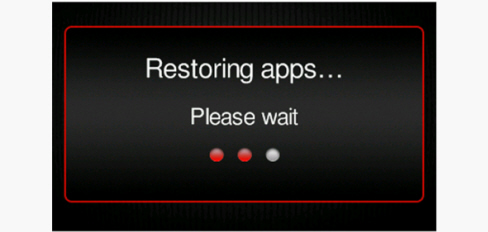
- The restore apps procedure involves the uninstallation of applications already present (installed with the previous software) and the installation of the new ones. The operation takes 30 to 40 seconds, during which the following screen is displayed (Fig. 12).
Fig. 12
|
|
During the restoring it is essential not to disconnect the battery of the vehicle. |
|
|
If the screen of Fig. 12 does not appear, repeat the procedure (press the settings buttons and then select Restore Apps - Next - Yes); this can happen when trying to restore apps in the first seconds after the start of the radio. |
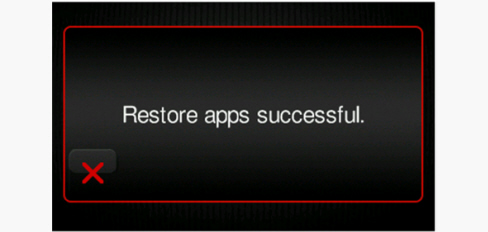
- Wait for completion of the Restore Apps procedure until the message Restore Apps successful (Fig. 13) appears on the display.
- Turn the ignition key to STOP.
Fig. 13
Restoring customer settings (if required by the customer)
when handing the vehicle back, assist the customer with reinstating the settings previously noted during reception and pairing the telephone.
|
|
If problems referred to the Bluetooth® radio/telephone pairing occurs, it is advisable to remove the telephone from the list of devices paired to the radio. IF PRESENT, delete the previous association of the system also from the list of Bluetooth® devices in the telephone and make a new pairing. |
|
|
The operative details for pairing telephones and settings are shown in the Owner Handbook of the infotainment module. |
CLAIM REPORT DATA
|
Version |
Operation |
Part |
Fault |
Position |
Time allowance |
|
All models in question |
5580235 |
1 |
R0 |
- |
0.30 |