




|






|
|
| Service News | ||
|
|
Alfa various models
Versions: MiTo and Giulietta with Alpine-7” radio (Opt.08Y) |
|
|||
| 5570 0 000 AA |
ALPINE RADIO
Network Information |
|||
CLAIMED FAULT
Volume cannot be regulated using either radio or steering wheel controls.
TECHNICAL CAUSE
The volume may be blocked at a set level which cannot be increased or decreased if the Customer modifies the “External Processor" setting (even accidentally).
OPERATIONS AT THE DEALERSHIPS
Return the "External Processor" setting to OFF following the procedure described below.

|
The "External Processor" setting is set as ON if an external amplifier / external signal processor is connected. When the option is set as ON, the volume is fixed at level 10 and cannot be changed. It is also impossible to change the other audio settings, such as Balance, Fader, Basses, Trebles, etc. |
Malfunction reports due to change in settings
Changes in the settings (especially if accidental) modify one or more Radio functions, which the Customer may interpret as a malfunction.
As well as the fixed volume, the Customer may report one or more of the following false malfunctions due to a change in the settings.
1. Incorrect information on radio display.
2. Rear camera not working
3. AUX input not working
4. HDMI input not working
5. Rear speakers not working
6. Car Play / Android Auto functions not working
After the following procedure for returning the "External Processor" setting to OFF, for each of the above complaints we provide the cause and the operating cycle for restoration of the correct setting/operation.
Returning the "External Processor" setting to OFF
Switch on the radio and make the following selections, in the stated order, by touching the specified icon or field.
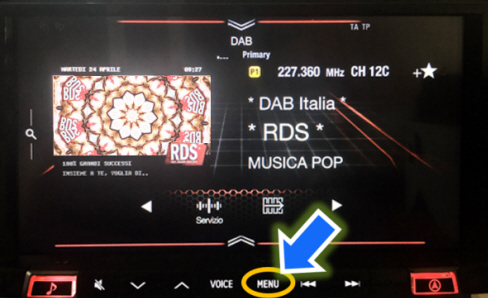
- Select Menu (Fig. 1).
Fig. 1

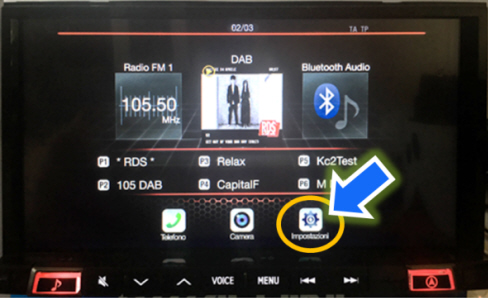
- Select Settings (Fig. 2).
Fig. 2
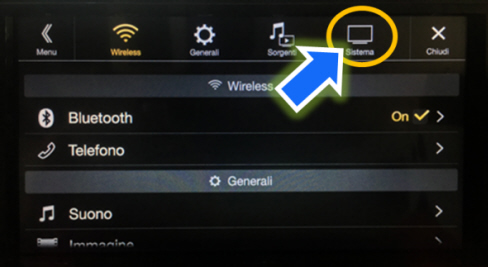
- Select System (Fig. 3).
Fig. 3
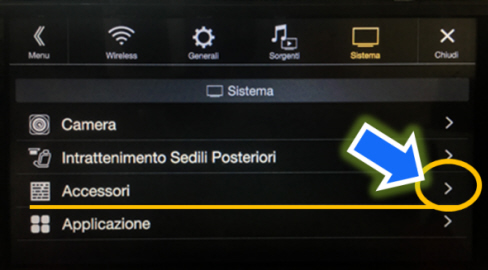
- Select Accessories (Fig. 4). The screen shown in Fig. 5 will appear.
Fig. 4
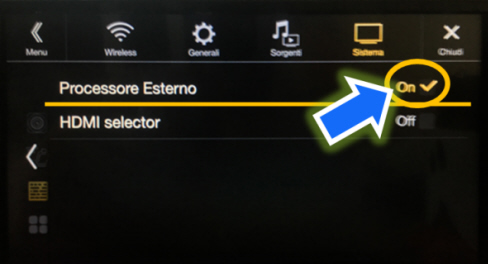
- If the "External Processor" function is set ON (Fig. 5), the volume is locked at a fixed level.
- Select to switch the setting to OFF.
Fig. 5
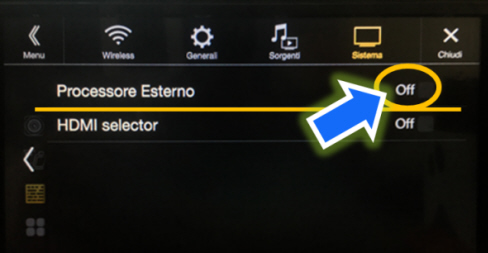
- Make sure that the "External Processor" function is set on OFF (Fig. 6).
- Select X (Close) until the initial video page returns to the screen and check that volume adjustment has been restored.
Fig. 6
Malfunction reports due to change in settings
The points which follow provide the cause and the operating cycle to restore the correct setting/operation for the following complaints.
1. Incorrect information on radio display.
2. Rear camera not working
3. AUX input not working
4. HDMI input not working
5. Rear speakers not working
6. Car Play / Android Auto functions not working
1. Incorrect information on radio display.
Cause:
Demo mode activated.
Operation:
- Select Menu (Fig. 1).
- Select Settings (Fig. 2).
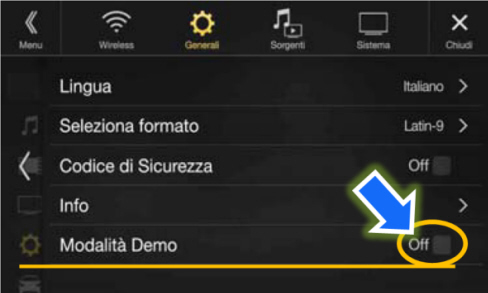
- Select the General menu (A – Fig. 7) then the General settings (B). The screen shown in Fig. 8 will appear.
Fig. 7
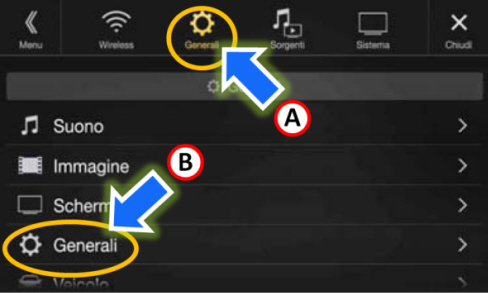
- The "Demo Mode" function set as ON confirms the incorrect data display.
- Select to switch the setting to OFF (Fig. 8).
Fig. 8
2. Rear camera not working
Cause:
The rear camera has been deselected.
Operation:
- Select Menu (Fig. 1).
- Select Settings (Fig. 2).
- Select System (Fig. 3).
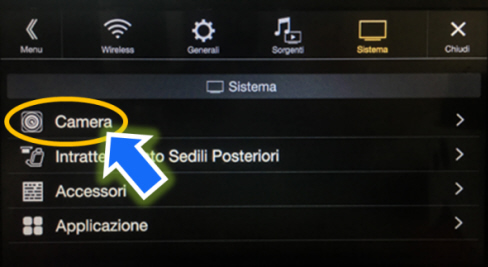
- Select Camera (Fig. 9). The screen shown in Fig. 10 will appear.
Fig. 9
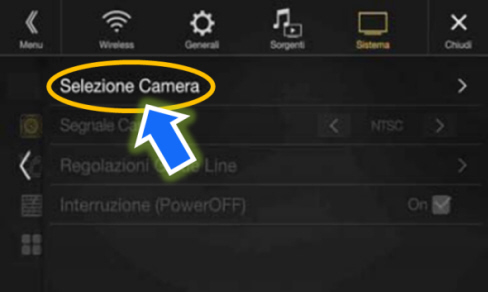
- Select Camera Selection (Fig. 10). The screen shown in Fig. 11 will appear.
Fig. 10
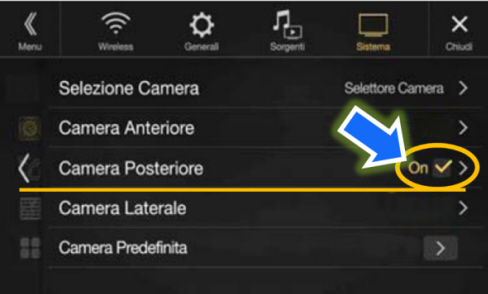
- Switch the Rear Camera setting to ON.
Fig. 11
3. AUX input not working
Cause:
Aux source deactivated.
Operation:
- Select Menu (Fig. 1).
- Select Settings (Fig. 2).
- Select Sources (Fig. 12). The screen shown in Fig. 13 will appear.
Fig. 12
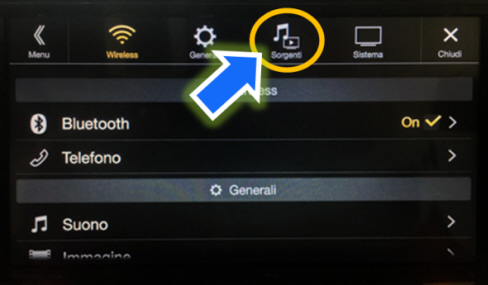
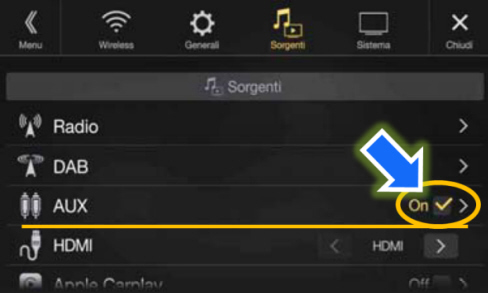
- Select to switch the AUX setting to ON (Fig. 13).
Fig. 13
4. HDMI input not working
Cause 1:
HDMI source deactivated.
Operation:
- Select Menu (Fig. 1).
- Select Settings (Fig. 2).
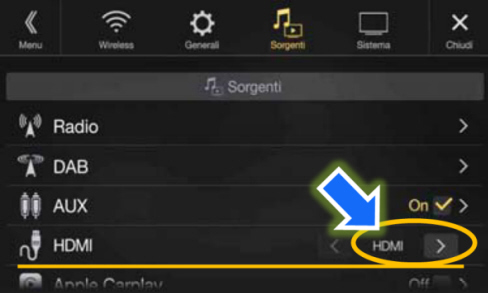
- Select Sources (Fig. 12). The screen shown in Fig. 14 will appear.
- Select to switch the setting to HDMI (to connect a smartphone) or DVD (to connect an external DVD player) (Fig. 14).
Fig. 14
Cause 2:
The second HDMI source has been activated but is not present
|
|
The Alpine Radio allows connection of an HDMI selector for connection of 2 HDMI devices; the controls can be utilised to switch to the device to be used. |
Operation:
- Select Menu (Fig. 1).
- Select Settings (Fig. 2).
- Select System (Fig. 3).
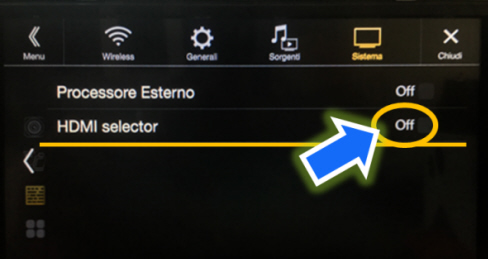
- Select Accessories (Fig. 4). The screen shown in Fig. 15 will appear.
- Make sure that the "HDMI Selector" function is set on OFF (Fig. 15). (No HDMI selector).
Fig. 15
5. Rear speakers not working
Cause:
Rear speakers deactivated.
Operation:
- Select Menu (Fig. 1).
- Select Settings (Fig. 2).
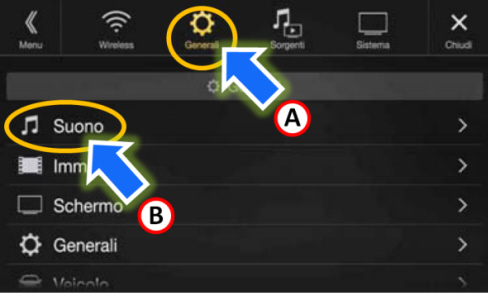
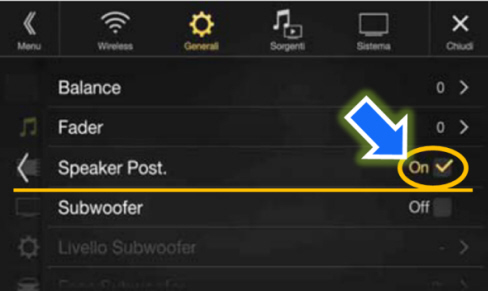
- Select the General menu (A – Fig. 16) then the Sound settings (B). The screen shown in Fig. 17 will appear.
Fig. 16
- Select to switch the Rear Speaker setting to ON (Fig. 17).
Fig. 17
6. Car Play / Android Auto functions not working
Cause:
The mode corresponding to the device to be used has not been activated.
Operation:
- Select Menu (Fig. 1).
- Select Settings (Fig. 2).
- Select Source (Fig. 12).
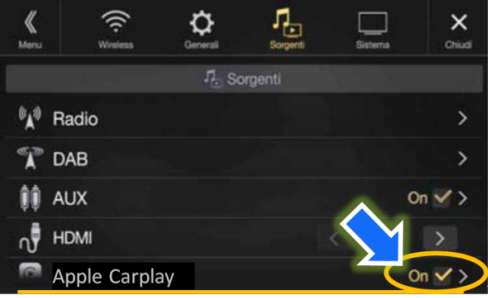
Set the Apple Carplay function for the device to be used, as follows (Fig. 18):
- Select ON to connect an iPhone device.
- Select OFF to connect an iPod device.
Fig. 18