





|






|
|
| Service News | ||
|
|
Alfa MiTo
ALL VERSIONS |
|
|||
| 5580 1 961 RA |
RADIONAV NAVIGATION SYSTEM
Various faults - Service Solution |
|||

|
Cancels and replaces SN 55.04.10 of 15/12/2010 for the availability of the new software (Release 1.19.4) to solve also faults 5, 6 and 7 |
FAULT COMPLAINED OF
The Customer complains of one or both of the following faults:
1. Occasional system locking with white screen, or stripes, and/or occasional spontaneous restarting
2. Occasional missed acknowledgment of the SD card.
3. Display too much bright while in Stand-by.
4. My Car configuration loss with possible missed memorisation of language settings.
5. Truncated telephone number.
6. Lock of the screen with audio still working.
7. Lock of the system with screen formed by coloured polygons and system restarting.
TECHNICAL CAUSE
Navigator module software.
OPERATIONS IN NETWORK
Network behaviour standards towards the Customer
- Once the claimed fault is confirmed, reassure the Customer that it can be solved by upgrading the navigator module software.
- After the operation, show the Customer what has been done and make sure he is satisfied.
Service Solution
If this fault is reported and confirmed, proceed with the upgrading of the navigator module software, as described in the Operating Cycle below.
OPERATION CYCLE
UPGRADING SOFTWARE ACQUISITION
To upgrade the software, the following is required before proceeding:
- Check the availability of the following instruments:
- Personal Computer with Windows© 2000 / Windows© XP / Windows© VISTA.
- Active Internet Connection.
- A new CD-ROM with manufacturer's certification of compatibility with Windows© 2000 / Windows© XP / Windows© VISTA operating systems.
- Download the file:

|
- Unzip the downloaded file and, at the end of the operation, make sure only the file
Burn the CD-ROM with the .iso file as below described.
|
|
CD-ROM BURNING To burn the software on CD-ROM, use the programme NERO (or similar), whose main screen shots are shown here below by way of example. |
The use of rewritable CDs is not recommended.
For this type of application, the recommended options to burn CD-ROMS are the following (Fig. 1):
No multisession
Mode 1
File System: ISO 9660 + Joliet
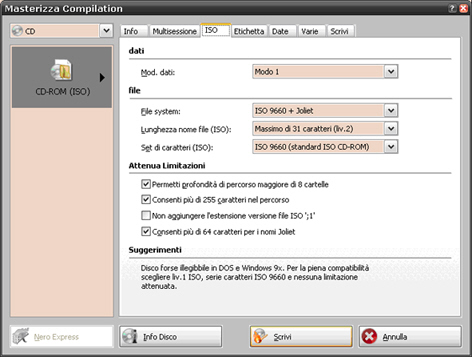
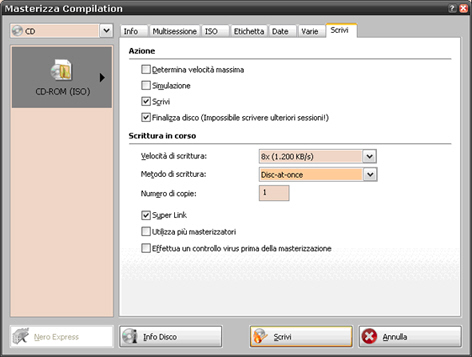
Continue and set (Fig. 2):
Slower write speed allowed by burning programme (example 8x)
Write method: Disc-at-once
Closed disc
IDENTIFICATION AND CHECK OF THE SOFTWARE UPGRADE CD-ROM
|
|
Place the key on MAR-ON and start the engine. |
during the software upgrade procedure the engine must be always on.
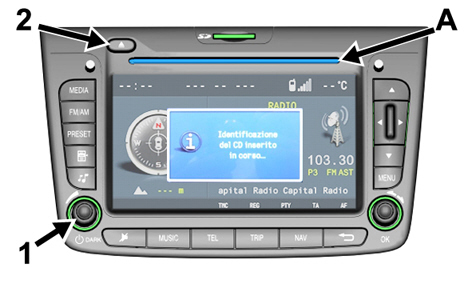
The navigator switches on automatically after about 10 seconds from the car starting; if it is off, switch it on pressing the knob on the bottom left section (1 - Fig. 3).
Press the button Eject (2 – Fig. 3) and make sure there is no CD-ROM inside the reader.
Insert the CD-ROM with the software in the suitable reader (A - Fig. 3).
Wait for about 60 seconds until the screen displays a pop-up message, shown in Fig. 3, stating: "CD reading in progress…".
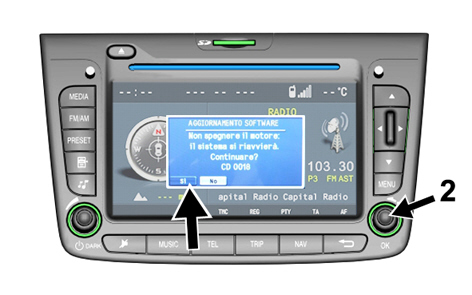
After about 20 seconds a second pop-up message is displayed, as shown in Fig. 4, stating: "SOFTWARE UPGRADE - Do not stop the engine: the system will restart. Continue? CD 00xx" (00xx is the number of the CD).
Rotate the right knob (2 - Fig. 4), select YES and press the knob to confirm.
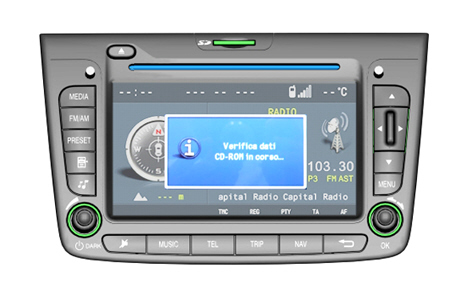
After selecting YES, the pop-up message, shown in Fig. 5, is displayed, stating: "CD-ROM data check in progress...".
|
|
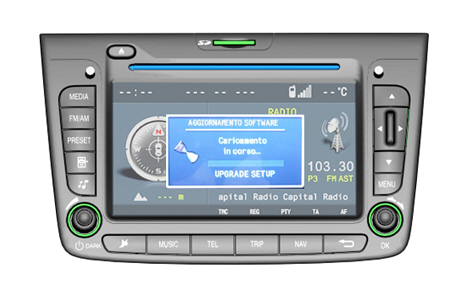
After about 80 seconds the pop-up message, shown in Fig. 6, is displayed, stating: "SOFTWARE UPGRADE - Reading in progress - UPGRADE SETUP". |
This pop-up message is displayed for about 10 seconds, then the display switches off automatically and restarts after about 50 seconds.
|
|
|
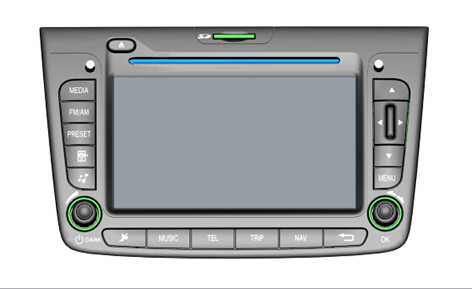
For these 50 seconds, the display is off, as shown Fig. 7, but the system is working; do not select any option. Once this time interval has elapsed, the software upgrade starts automatically, as below described.
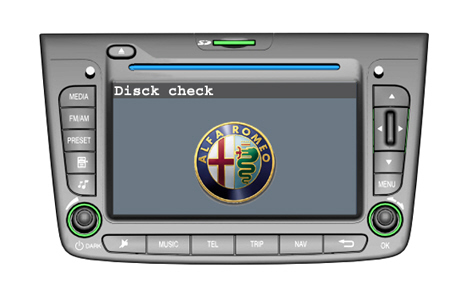
After the "Disk check" stage, the following four stages are carried out:
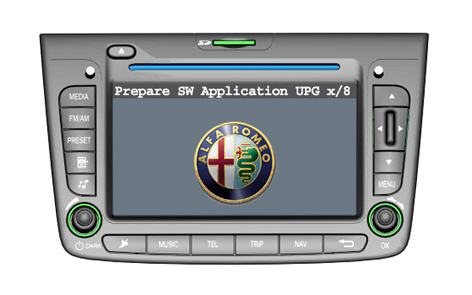
"Prepare SW Application UPG x/8"
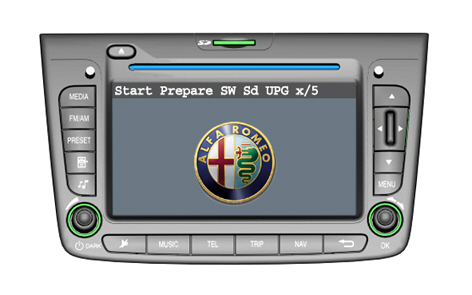
"Start Prepare Sw Sd UPG x/5"
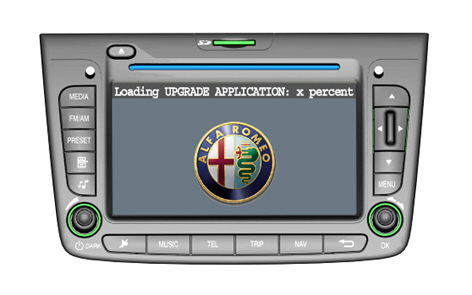
"Loading UPGRADE APPLICATION: x percent"
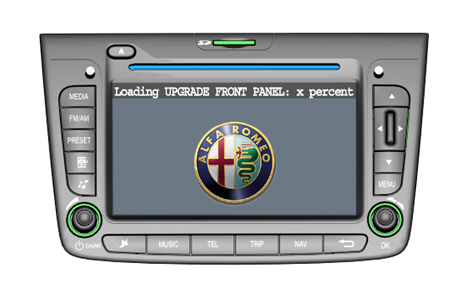
“Loading UPGRADE FRONT PANEL: x percent"
The stage in progress is always displayed in the top left section of the display.
"Prepare SW Application UPG x/8"
"Start Prepare Sw Sd UPG x/5"
"Loading UPGRADE APPLICATION: x percent"
"Loading UPGRADE FRONT PANEL: x percent"

|
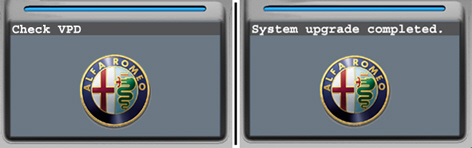
After the switching off, the system restarts automatically and is ready to work; turn the key to STOP and switch the engine off. The software upgrade procedure is completed. |
It could be required to enter again the map activation code when the system is restarted (for the activation code entering procedure, see SN 55.07.09).
If the car is equipped with a BOSE audio system, turn the key to STOP and wait until the system switches off completely (you should not hear the light sound of the fan). When the key is turned to MAR-ON again, all the system functions are working.
FAILED SOFTWARE UPGRADE
Should the upgrade operation fail for whatever reason, the procedure must be repeated.
If the upgrade fails during CD-ROM identification and check, that is from the CD-ROM insertion until right before the displaying of the pop-up message stating: "SOFTWARE UPGRADE - Reading in process - UPGRADE SETUP " (shown in Fig. 4) the CD-ROM is automatically ejected. Retry by inserting the CD-ROM again and, if it fails again, proceed as follows:
insert an AUDIO CD or MP3 to make sure the reader works correctly:
visually make sure that the CD surface is intact (no scratches, stripes, marks, dusts, etc...)
check if the application software to be installed is correct for the target product
use a PC to check if the CD-ROM was burnt correctly (there should be the same folders shown in Fig. 14, that should be selectable by the PC without any error); otherwise, burn a new CD-ROM strictly complying with the above instructions.
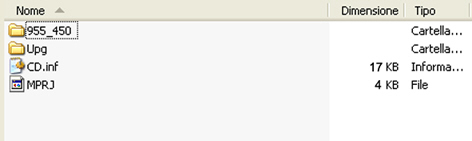
If the process fails in any other stage of the Software upgrade, usually the system ejects the CD automatically. Both if the CD is ejected or not, proceed as follows:
Turn the key to STOP, switch the engine off and wait until the system switches off completely (you should not hear the light sound of the fan).
Restart the engine (key on MAR-ON), insert the CD if it was ejected and proceed as above described, starting from the "Disk check" stage (shown in Fig. 8).
INFORMATION FOR THE CUSTOMERNEW LOGIC OF THE PRESET BUTTONBefore reprogrammingAfter reprogrammingPressing the button PRESET shortly, the display shows the list of the 6 stored radio stations. Select the desired station using the OK button/knob.After having selected the desired frequency, the display will show the list of 6 positions available with information on the stations currently stored and will allow the user to store the station.Pressing the button PRESET shortly, the display shows the list of the 6 stored radio stations. Select the desired station using the OK button/knob.After having selected the desired frequency, pressing the PRESET button the display will show the list of 6 positions available for the storage; select "Store" and then select the desired position using the OK button/knob.NEW OPTION FOR ENTERING THE ADDRESS OF DESTINATIONBefore reprogrammingAfter reprogrammingEntering the address of destination: the following data should be entered: Country, City, Road, House number or Intersection.Entering the address of destination: the following data should be entered: Country, City (ZIP), Road, House number or Intersection.After having selected the "City" item, the display will show a keypad with numbers and letters for entering the name of the city or the corresponding ZIP.NEW OPTION FOR REPEATING THE NAVIGATION MESSAGEBefore reprogrammingAfter reprogrammingPressing the NAV button the Navigation map is displayedPressing the NAV button the Navigation map is displayed or, in Navigation map mode, the last voice message is repeated
|
|
|
|
|
|
|